Figma to Kavia
Import your Figma designs into Kavia and instantly begin building your application.
Step-by-step:
1
Start a Project
On the Kavia home page, create a new project by entering a prompt, selecting the application type (web or mobile), and choosing your preferred tech stack.
2
Customize Project Settings
After launching the project, review and adjust your:
- Project Overview
- Core Features
- Tech Stack
- Design Layout
- Theme Colors
- Third-party Integrations
3
Import Your Figma Design
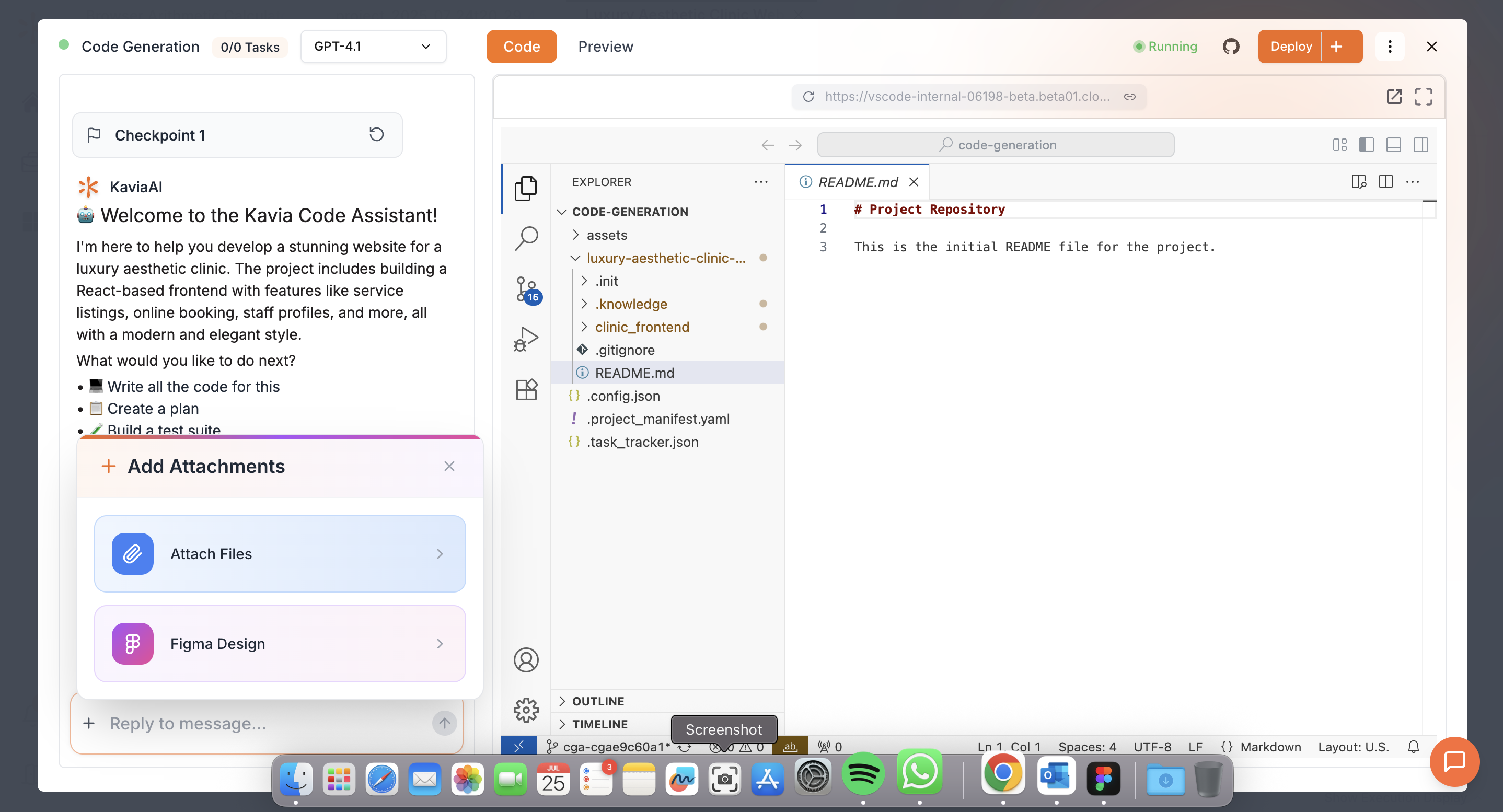
Once inside the Project Dashboard, click the + icon at the bottom-left of the chat input.Choose Figma Design from the options.
4
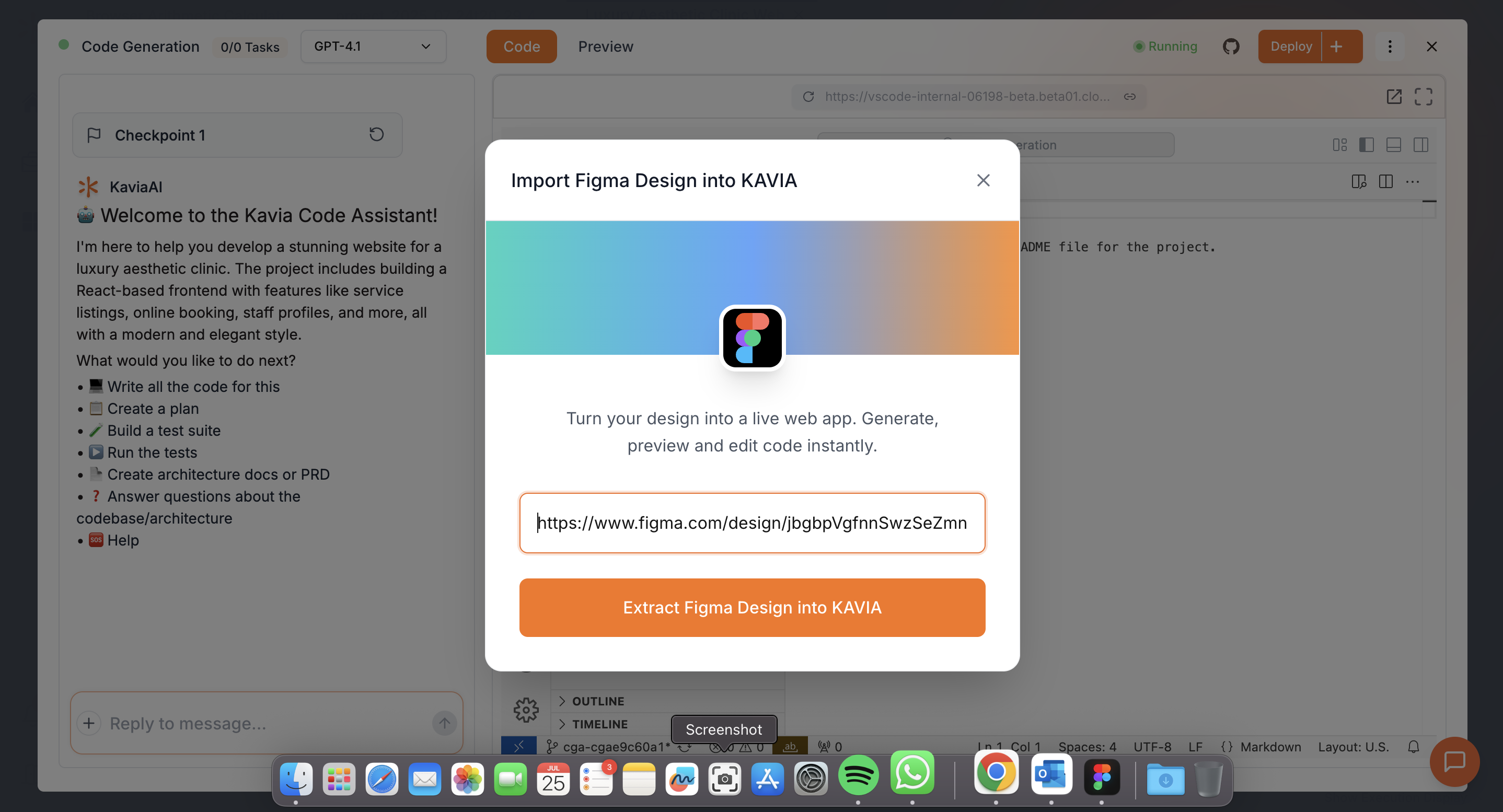
Enter Your Figma Link
A popup will appear prompting you to enter your Figma file URL. Make sure the Figma link is publicly accessible.
5
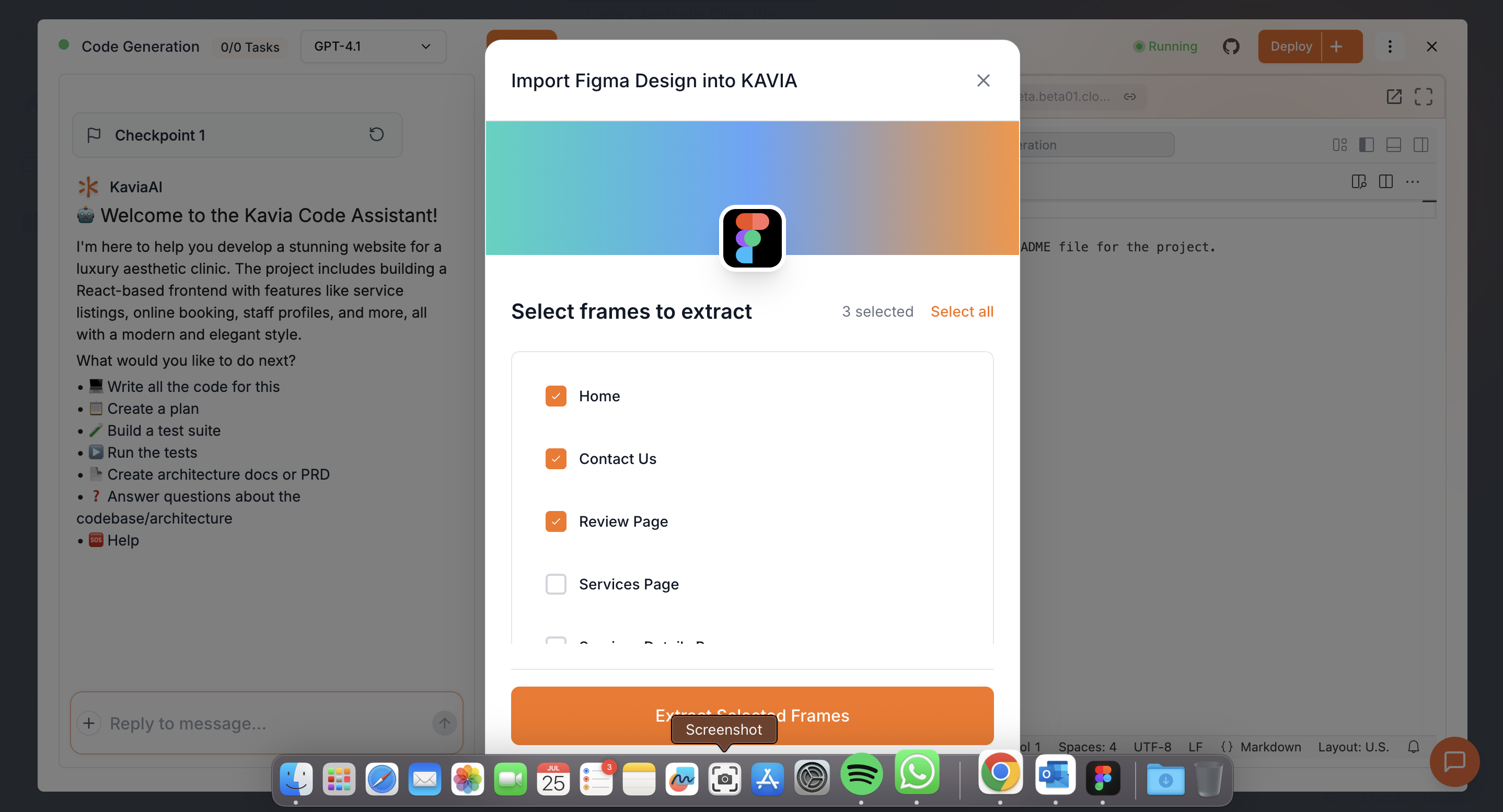
Extract Your Frames
Click “Extract Figma Design into Kavia”. Kavia will fetch all available frames from your design. Select the frames you want to develop and then click “Extract Selected Frames.”
6
Start Building
Use the chat to tell Kavia what to build:
- “Start with the login page.”
- “Build all selected frames.”
- “Develop only the dashboard view for now.”
Kavia will translate your designs into production-ready code using the stack you've configured.
Previous
Attach FilesNext
Code Generation