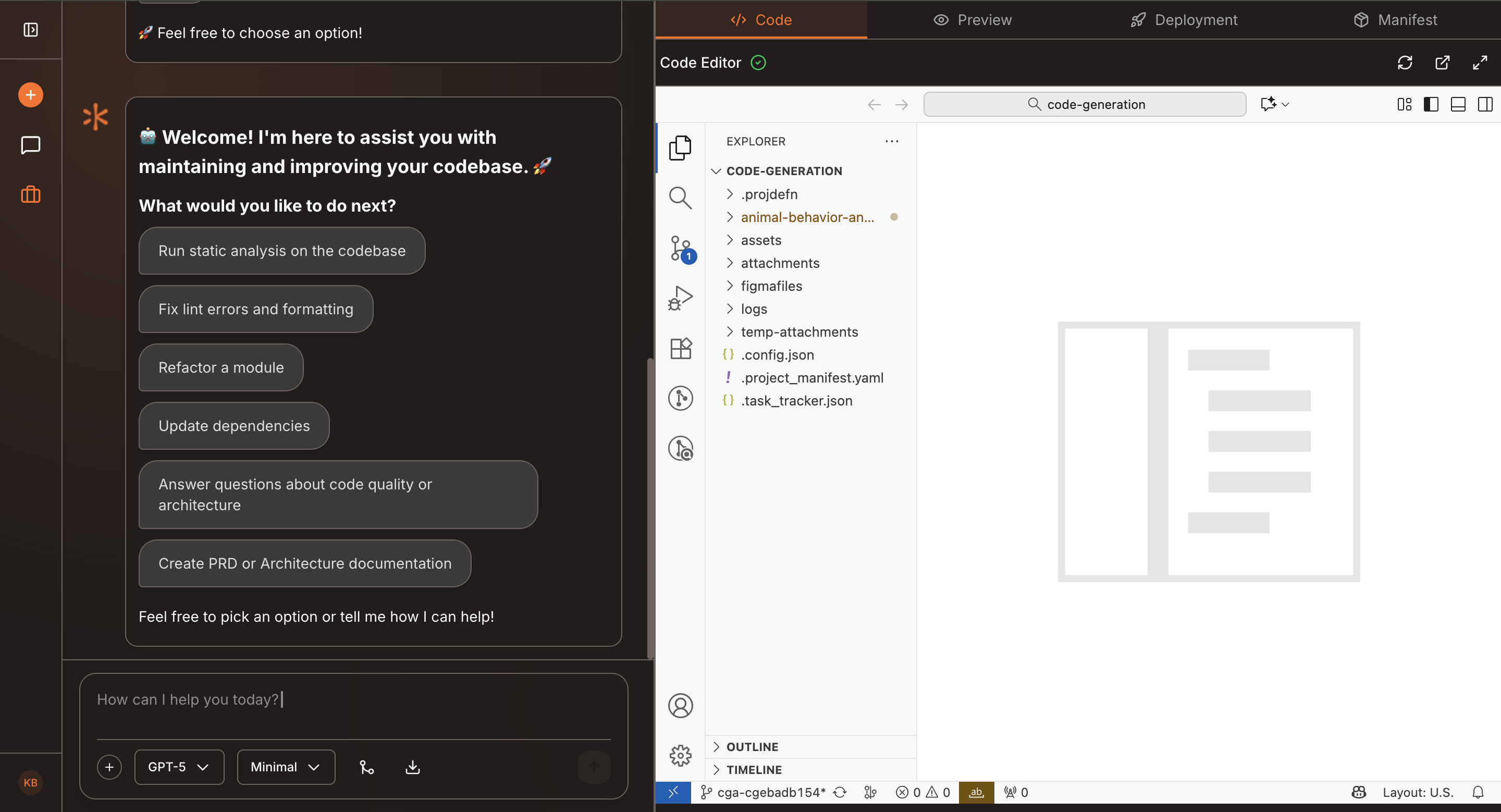
Project Manifest
The Kavia AI Assistant’s chat interface is the core of your workflow. It helps you write code, answer technical questions, explore ideas, and stay fully organized throughout your project. This section outlines how to navigate and make the most of the chat experience.
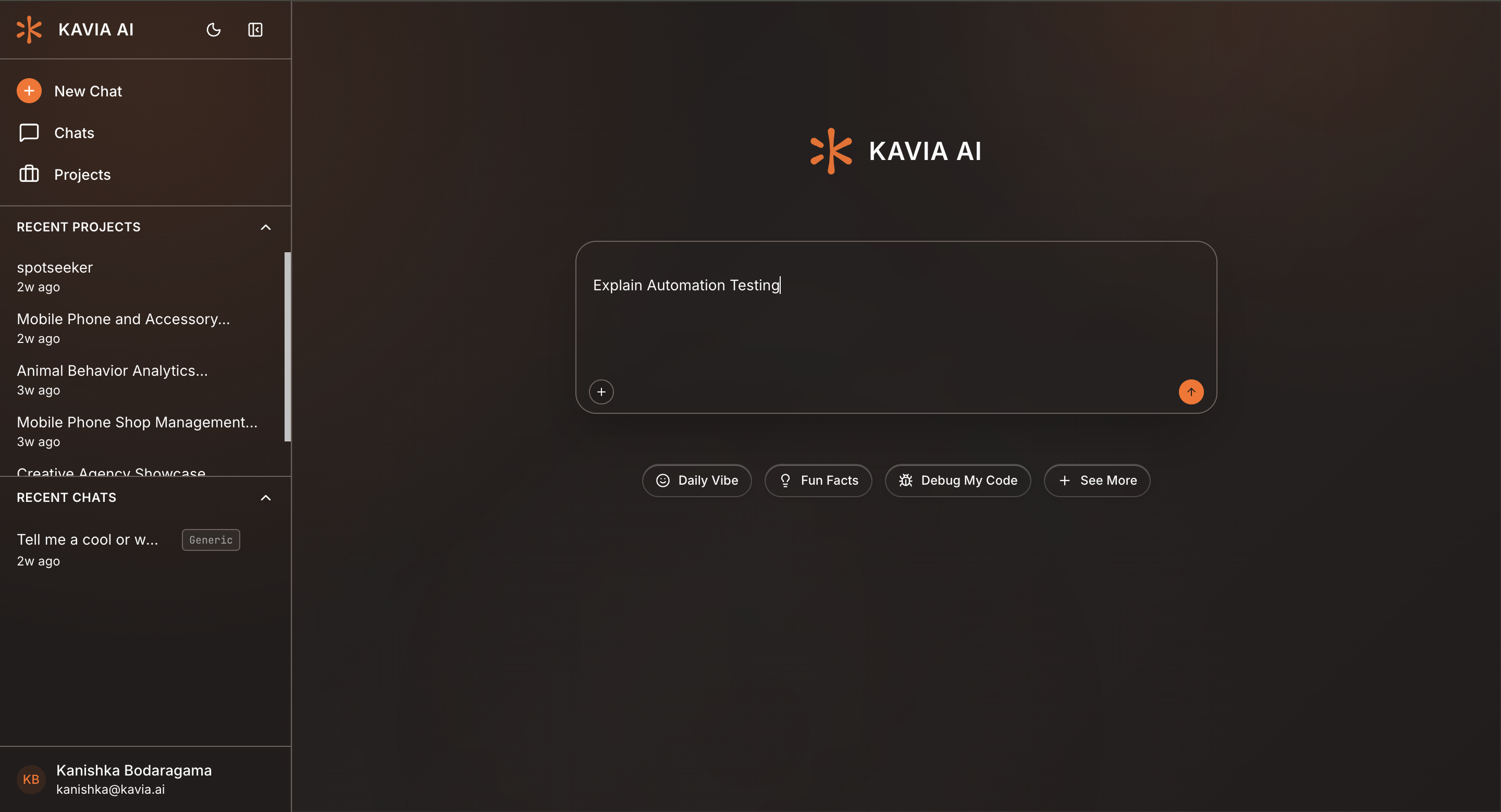
Starting a New Conversation
To begin a fresh interaction:
- Click New Chat from the chat panel or the main navigation bar.
- Type your question, request, or code prompt directly into the chat box.
Example: “Explain automation testing.”
Smart Suggestions & Quick Actions
Below the chat box, you will find smart suggestion buttons. These offer commonly used actions and shortcuts, enabling you to get started instantly with tasks such as:
- Code generation
- Debugging
- Documentation creation
- Explanation or learning assistance
Navigating the Interface
Kavia’s layout keeps everything easily accessible:
- Left Navigation Bar – Provides access to all major sections including Chats, Projects, and Settings.
- Chat Section – Stores all your previous chat sessions. You can revisit, review, or continue any past conversation seamlessly.
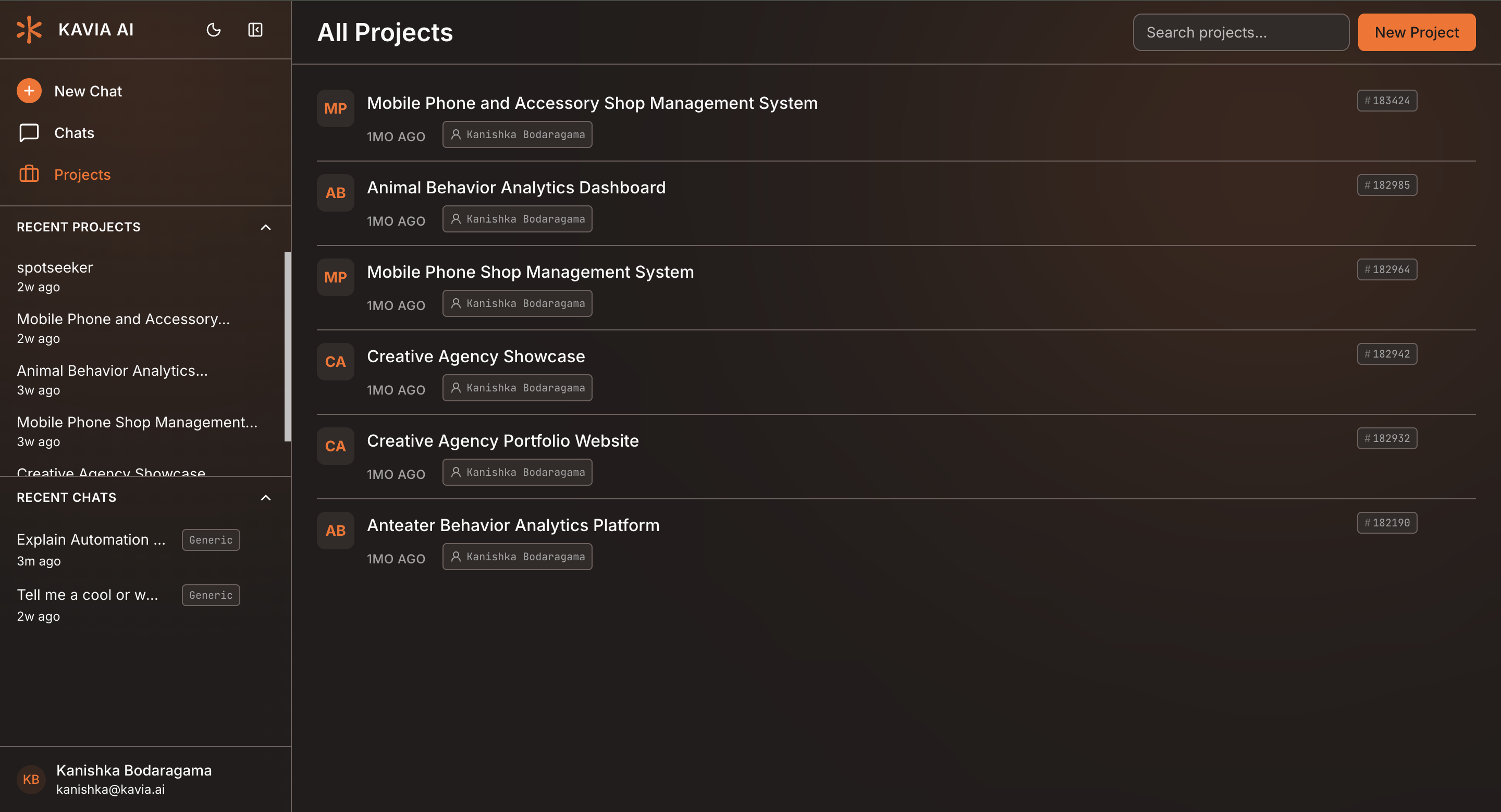
Managing Your Projects
The Project section helps you stay organized across all your development work.
- View a list of all your projects at a glance.
- Open any project to resume your current task.
- Start a new project session whenever required.
A Unified Workspace
The Kavia AI platform brings your development workflow into one place:
- Code assistance
- Technical explanations
- Quick actions
- Project management
- Organized chat history
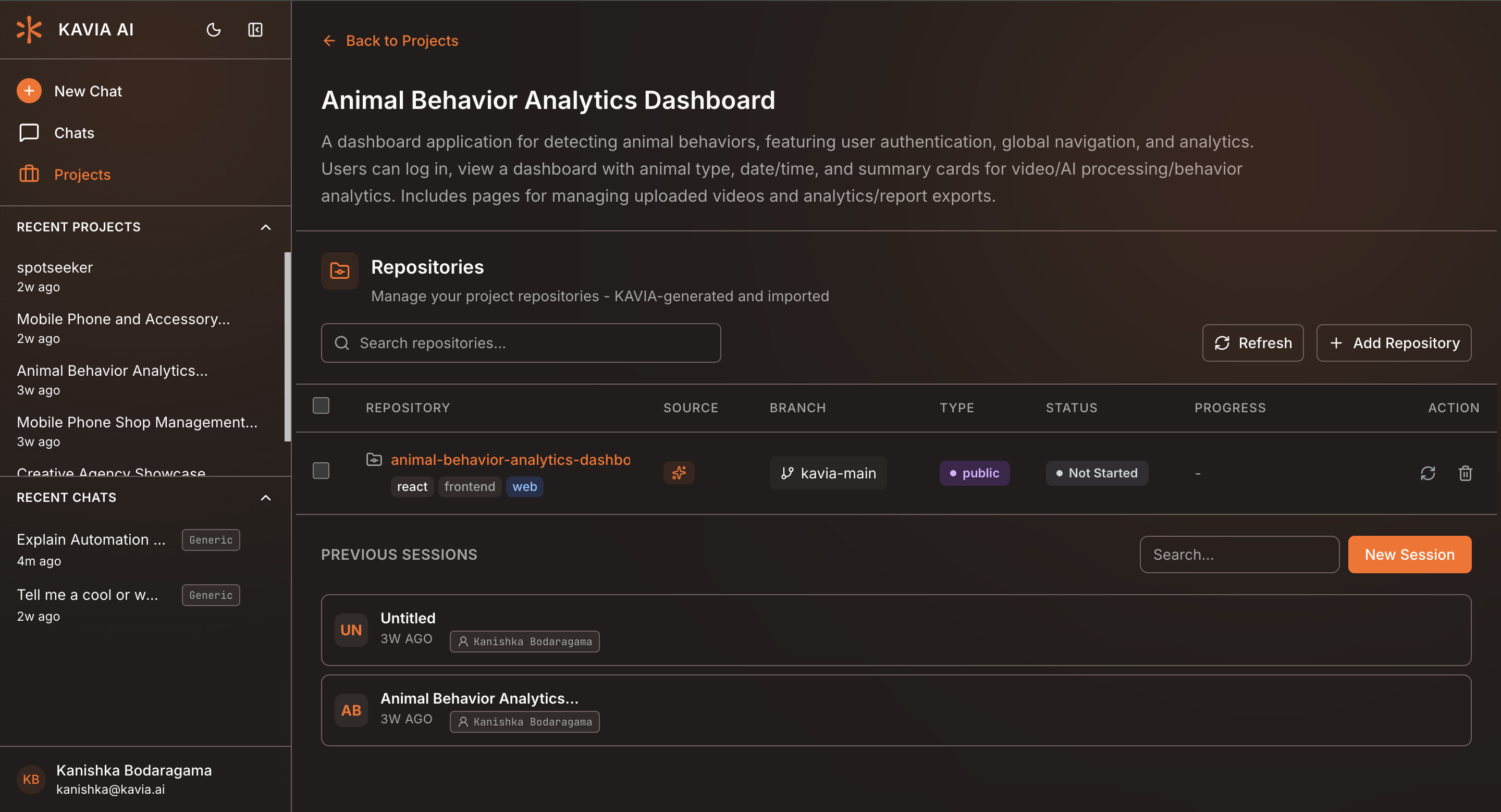
Everything you need to work efficiently is available in a single, streamlined interface—empowering you to focus on building and delivering with speed and clarity.