Custom Prompt
Custom Prompts allow you to define personalized instructions that Kavia Chat will consistently follow across all your projects. This feature is useful for enforcing coding standards, response styles, documentation formats, or development preferences. You can enable or disable prompts at any time based on your workflow needs.
Log in to Chat Kavia
Go to chat.kavia.ai and log in to your account.
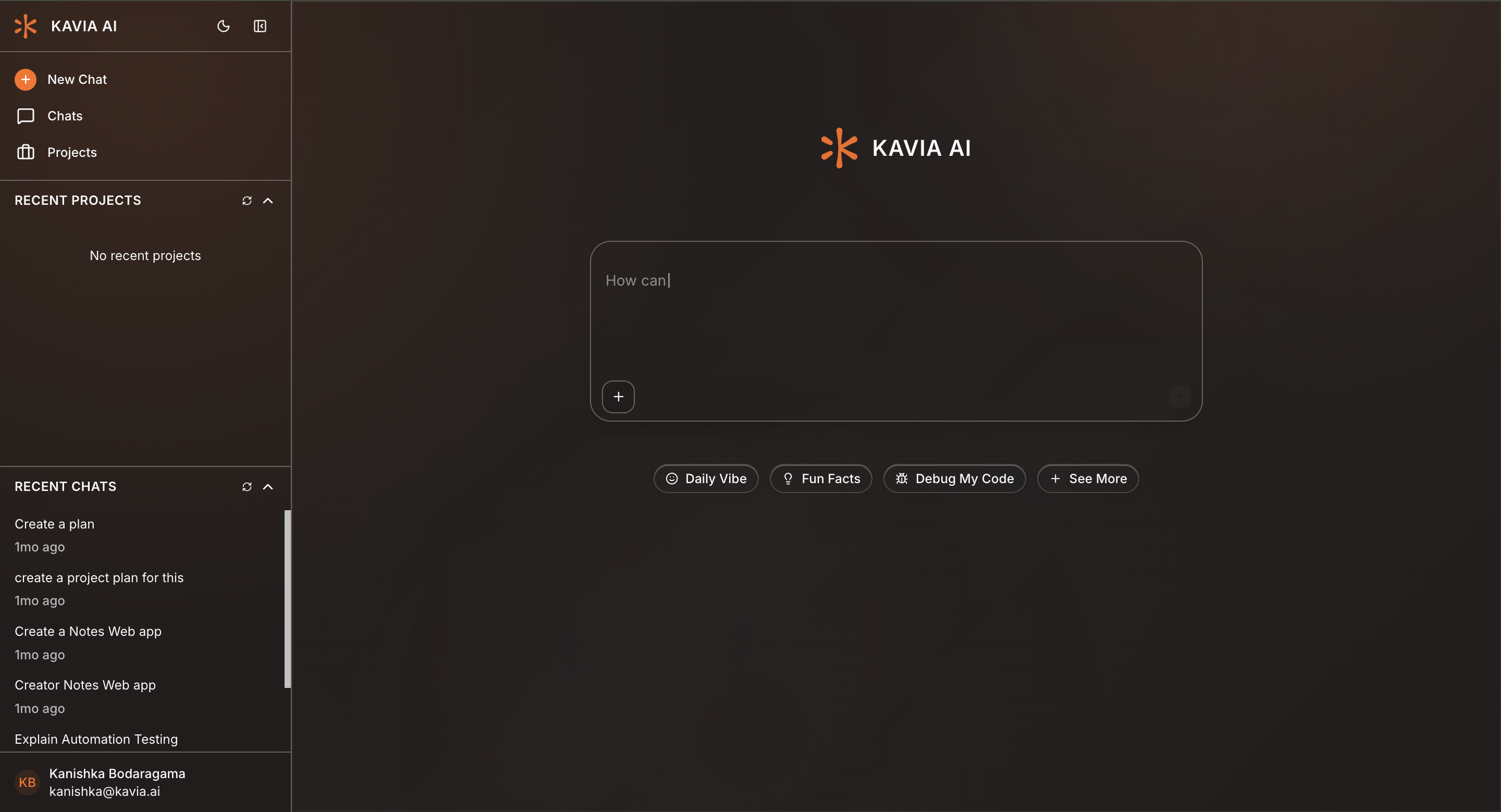
Open Settings
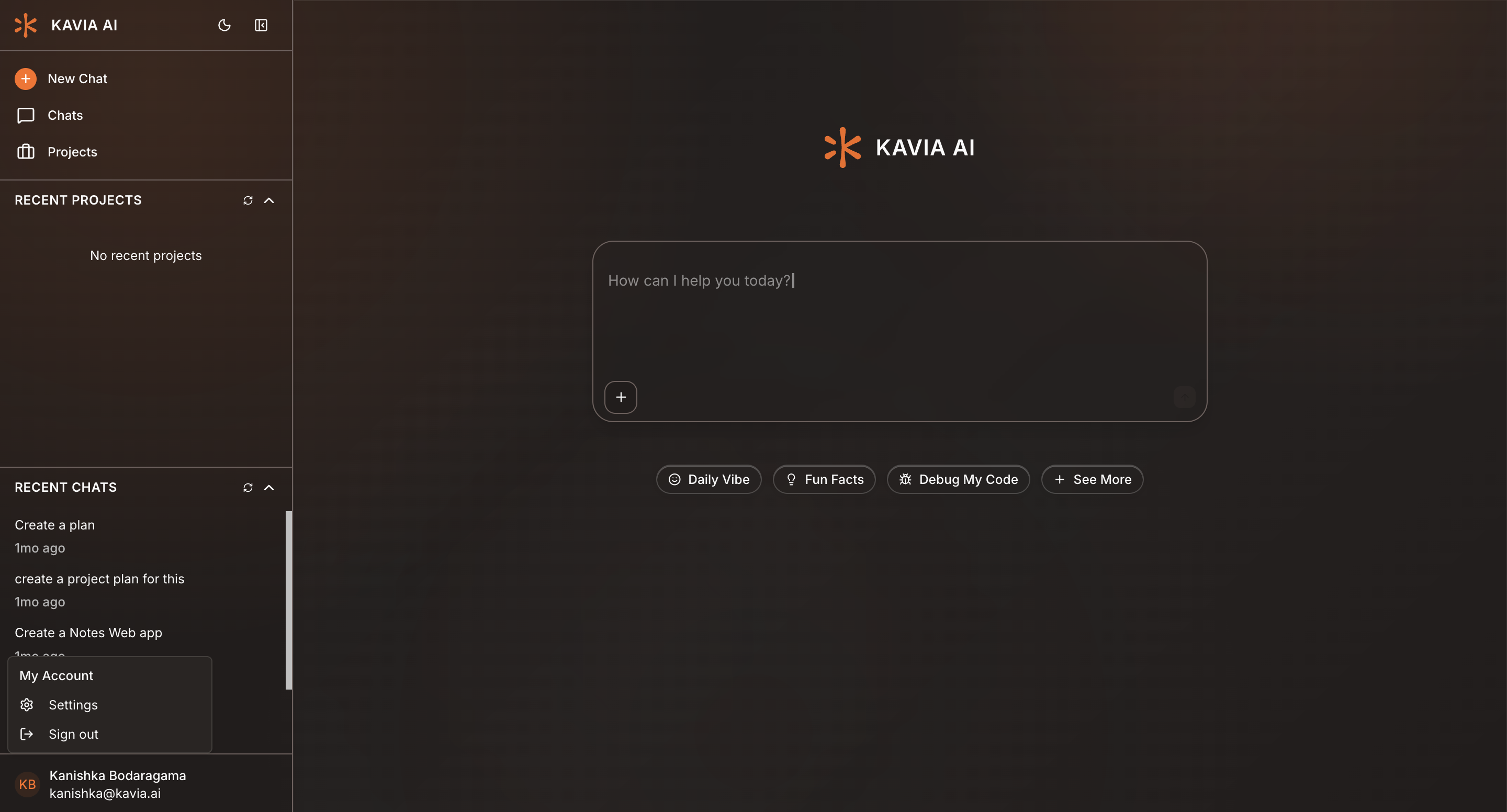
From the home page, click the profile icon located in the bottom-left corner of the screen. Select Settings from the menu.
Navigate to Prompts
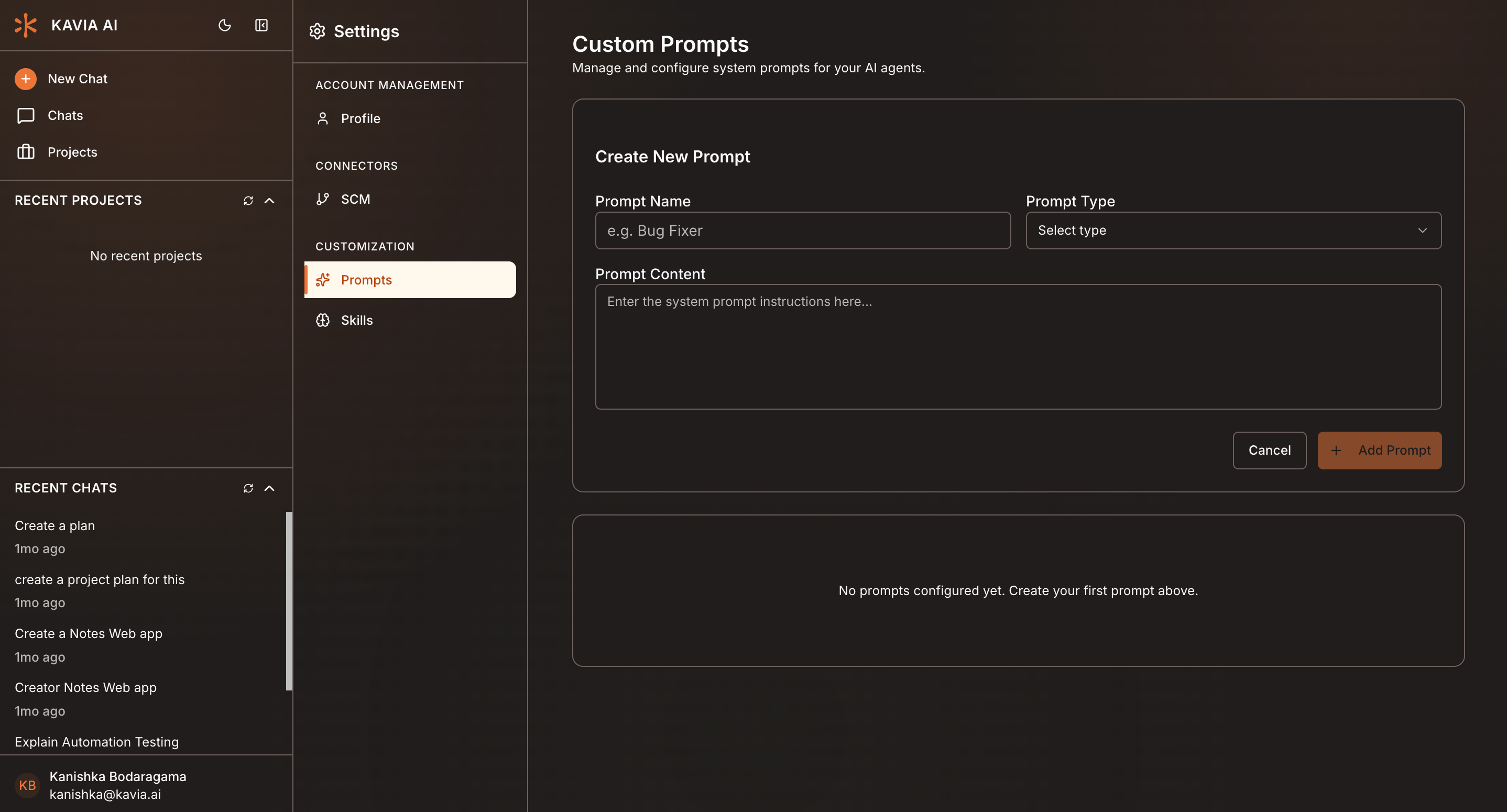
In the Settings panel, go to Customization and click Prompts.
Here, you’ll see a list of all previously created custom prompts, along with options to manage them.
Add a New Prompt
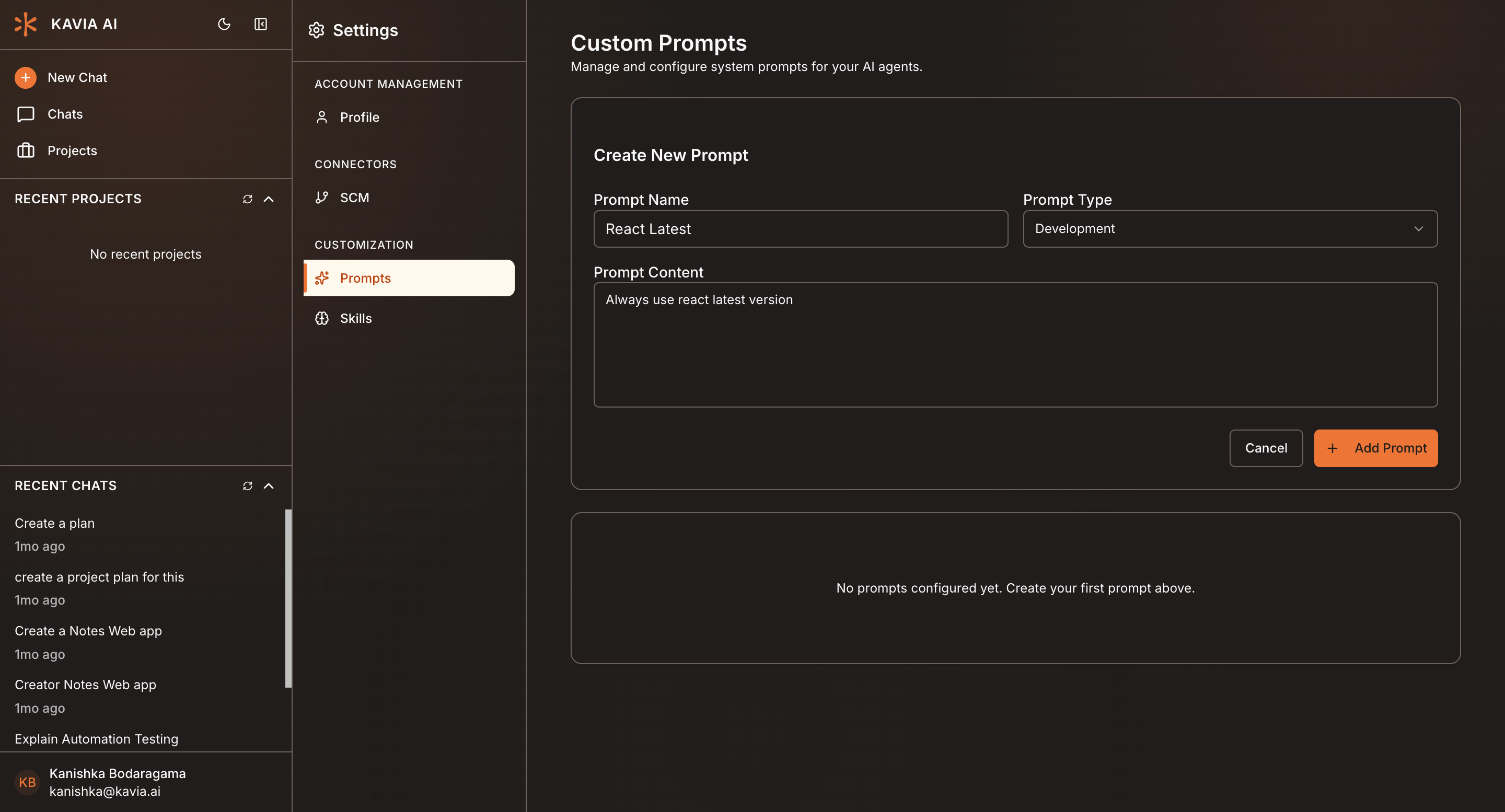
Click Add Prompt to create a new custom prompt.
You will be asked to provide the following details:
- Prompt Name - A clear name to identify the prompt
- Prompt Type - Select whether the prompt is for Support or Development
- Prompt Content - The instructions or rules you want Kavia Chat to follow
Once completed, click Add Prompt to save it.
Enable or Disable Prompts
After adding a prompt, it will appear in the prompt list.
You can toggle each prompt on or off, edit & delete at any time, depending on whether you want Kavia Chat to apply it to your current and future projects.
Why Use Custom Prompts?
- Enforce consistent coding or response standards
- Personalize how Kavia Chat interacts with you
- Apply reusable instructions across all projects
- Quickly enable or disable rules without editing each chat
Custom Prompts give you greater control over how Kavia Chat responds—ensuring consistency, efficiency, and alignment with your development style.