Adding Repositories to an Existing Project
Kavia allows you to extend and enhance your projects by linking additional repositories. This makes it easy to analyze larger codebases, collaborate efficiently, and run AI-powered code operations within the same project environment. Whether you’re importing public repositories or connecting your GitHub/GitLab accounts, Kavia ensures a seamless and secure workflow.
Follow the steps below to add repositories to any existing project.
Open Your Project
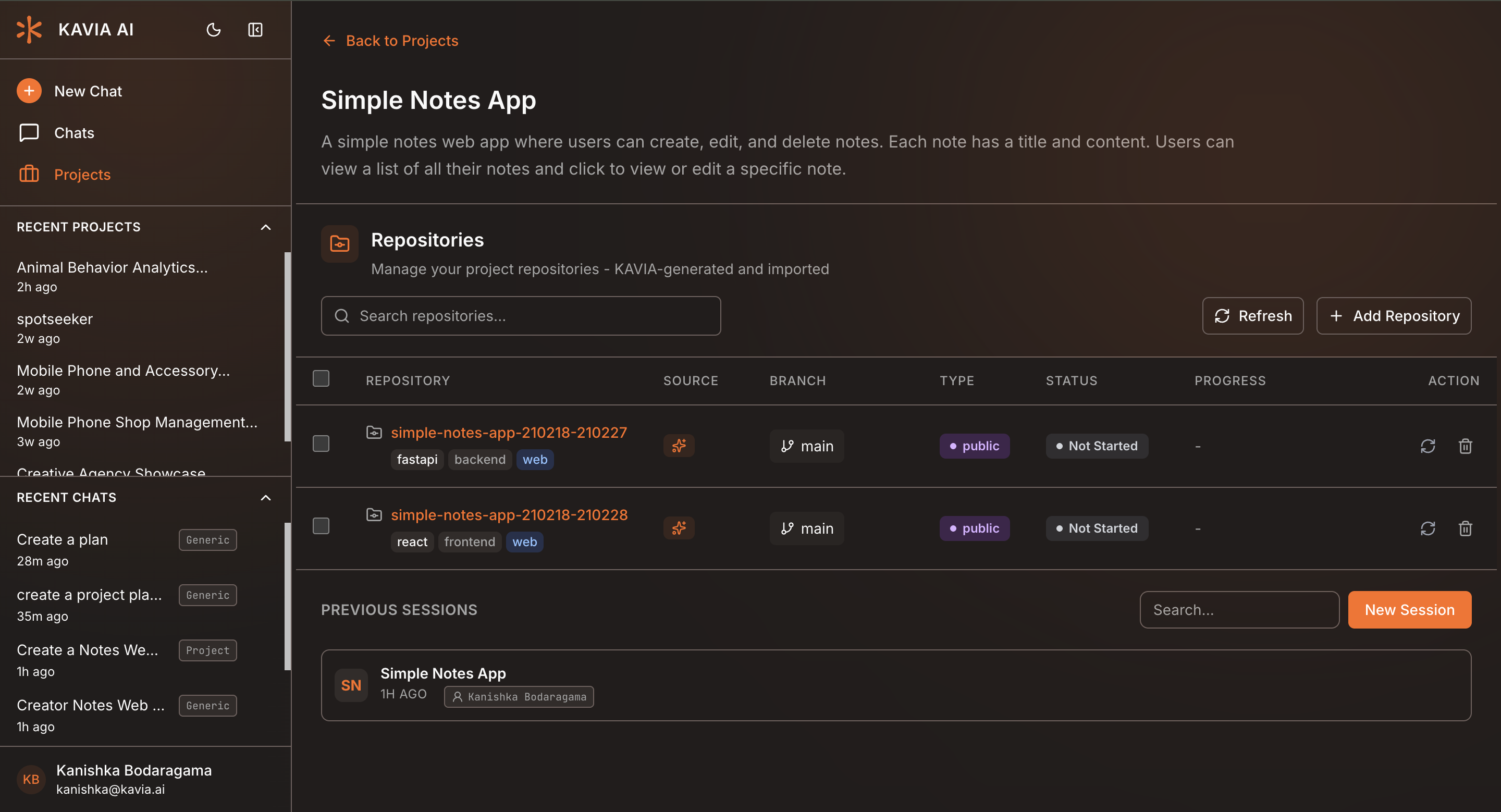
Select “Add Repositories”
Inside the project workspace, click Add Repositories.
A popup window will appear, offering multiple options for linking repositories.
The mini-window provides three ways to add repositories:
- Paste a public repository URL (GitHub,GitLab, Gerrit)
- Import from Organization Accounts
- Local Upload
Select the method that matches your workflow.
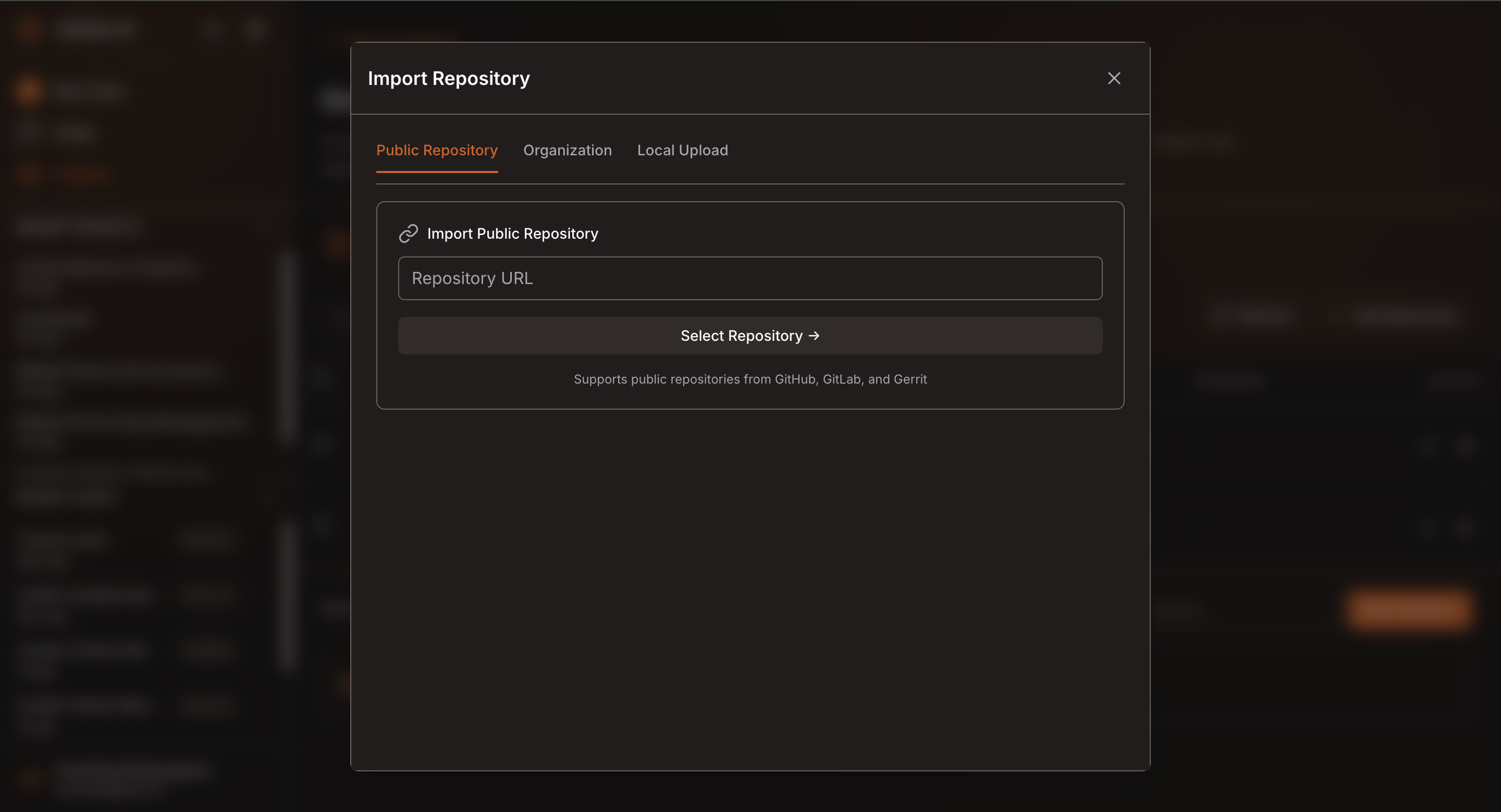
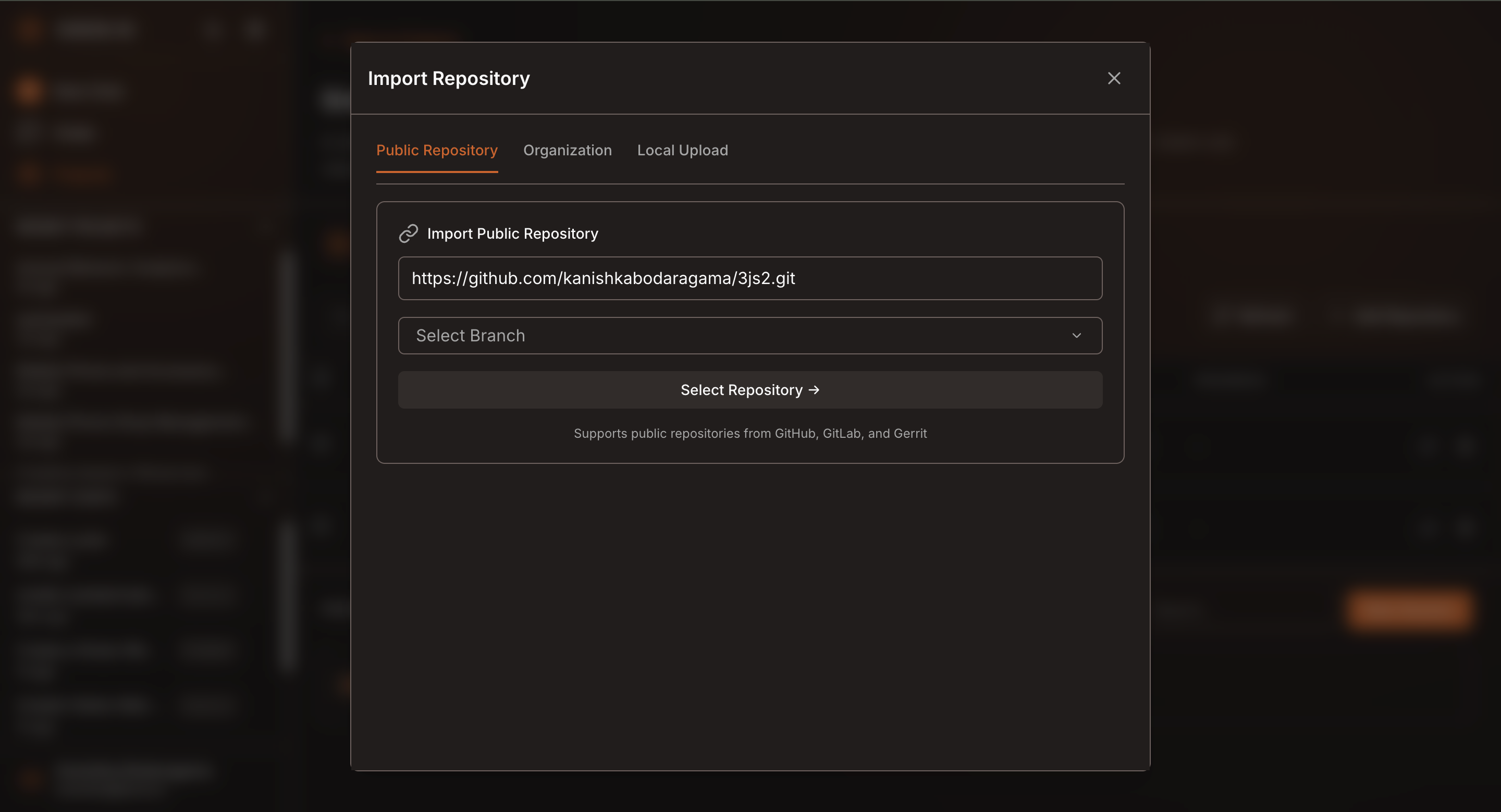
Option 1: Add a Public Repository
If you're adding a public repository via URL:
- Paste the repository link in the field provided.
- Select the branch you want to import.
- Click Confirm to proceed.
Kavia will begin processing the repository.
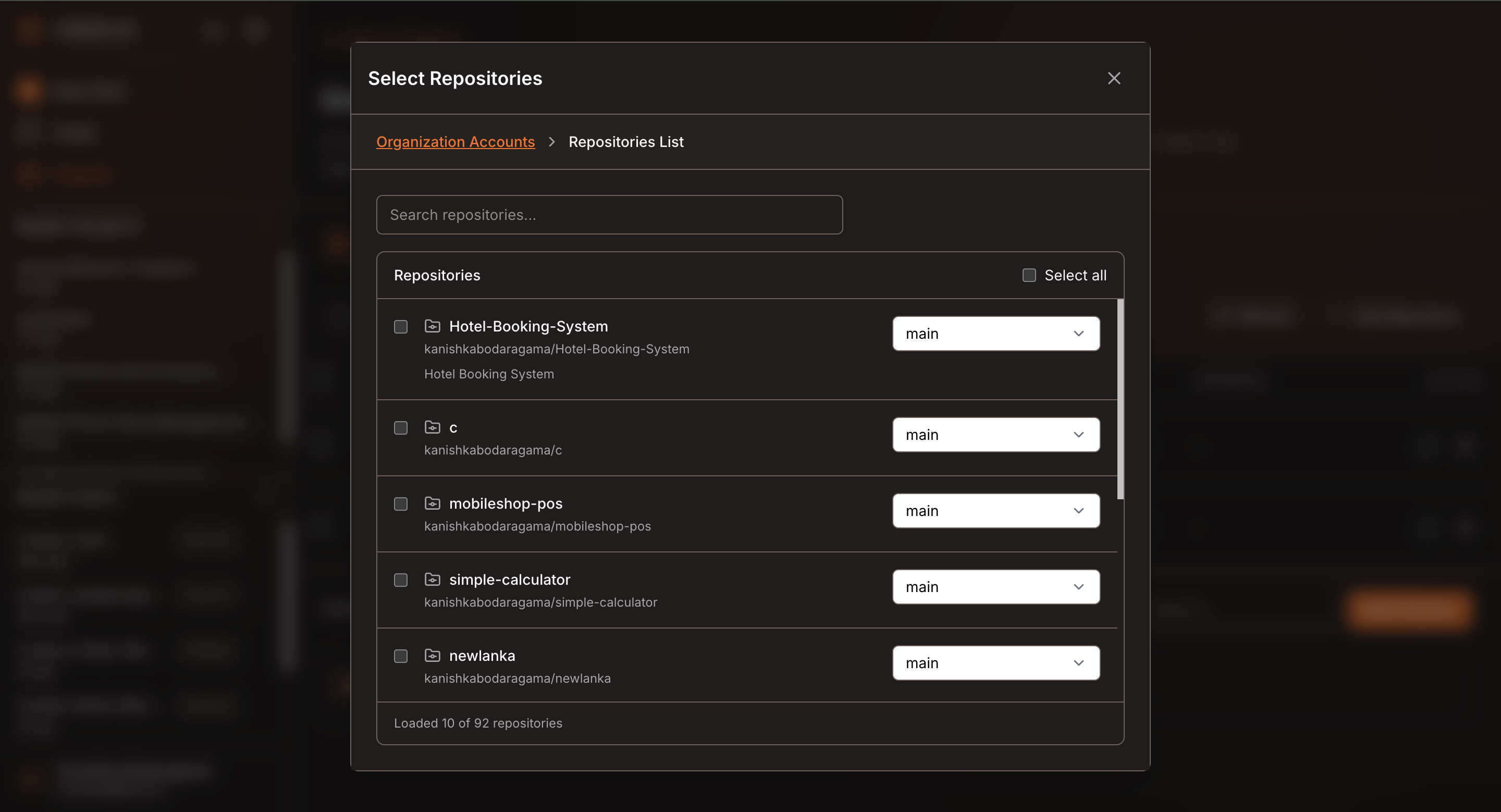
Option 2: Connect Your GitHub or GitLab Account
If you haven’t connected your account previously:
- Select GitHub or GitLab from the host list.
- Authenticate your account and authorize Kavia.
- Once connected, choose a repository and branch to import.
Kavia will automatically sync the repo with your project.
Note : Wait for the system to process the repository. Once the status displays complete, your repository is ready.