Style Guidelines
1
Open Style Guidelines
Once you reach the Project Welcome Screen, look for the Style Guidelines section. This is where you can manage the overall look and feel of your application.
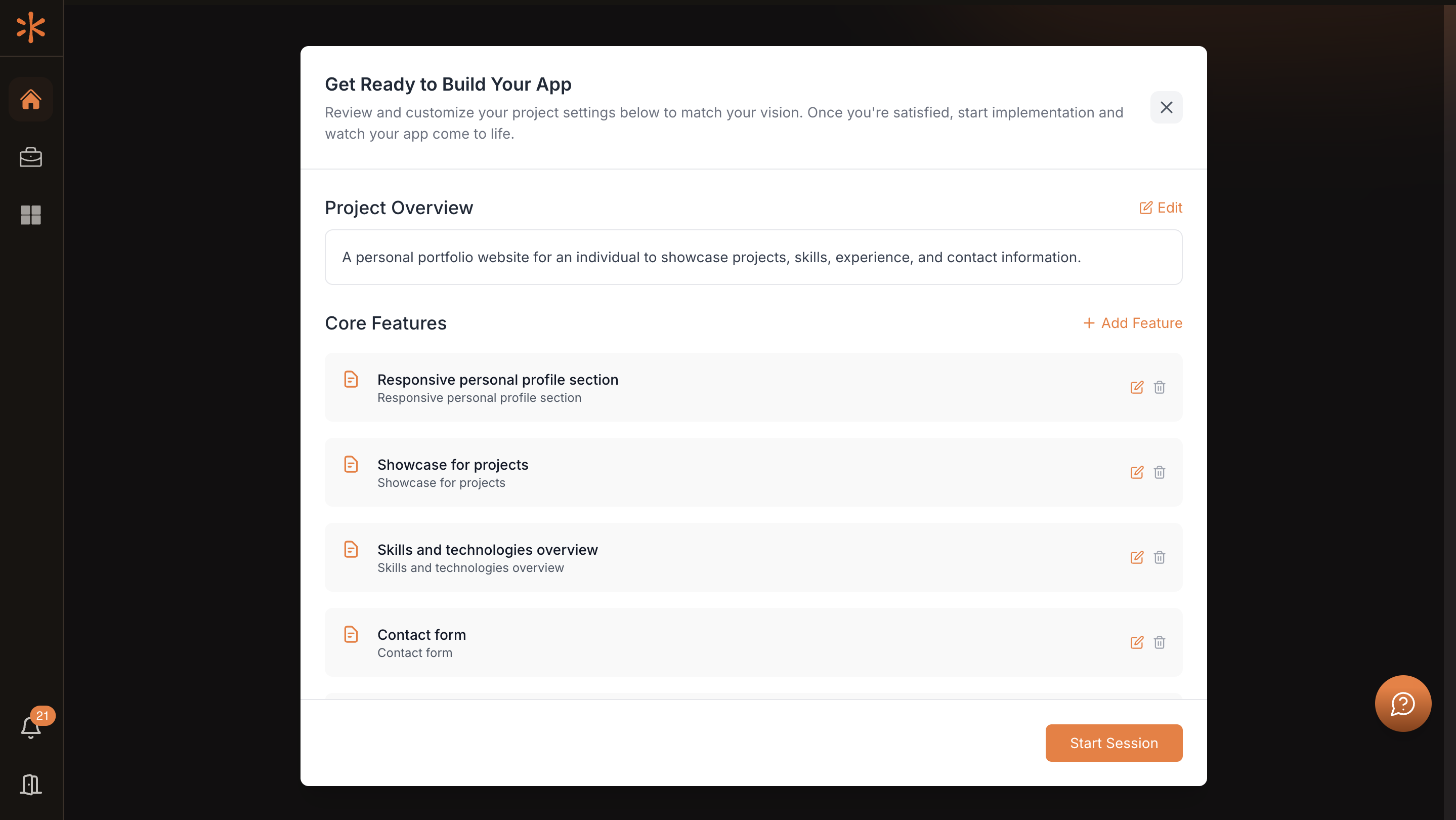
2
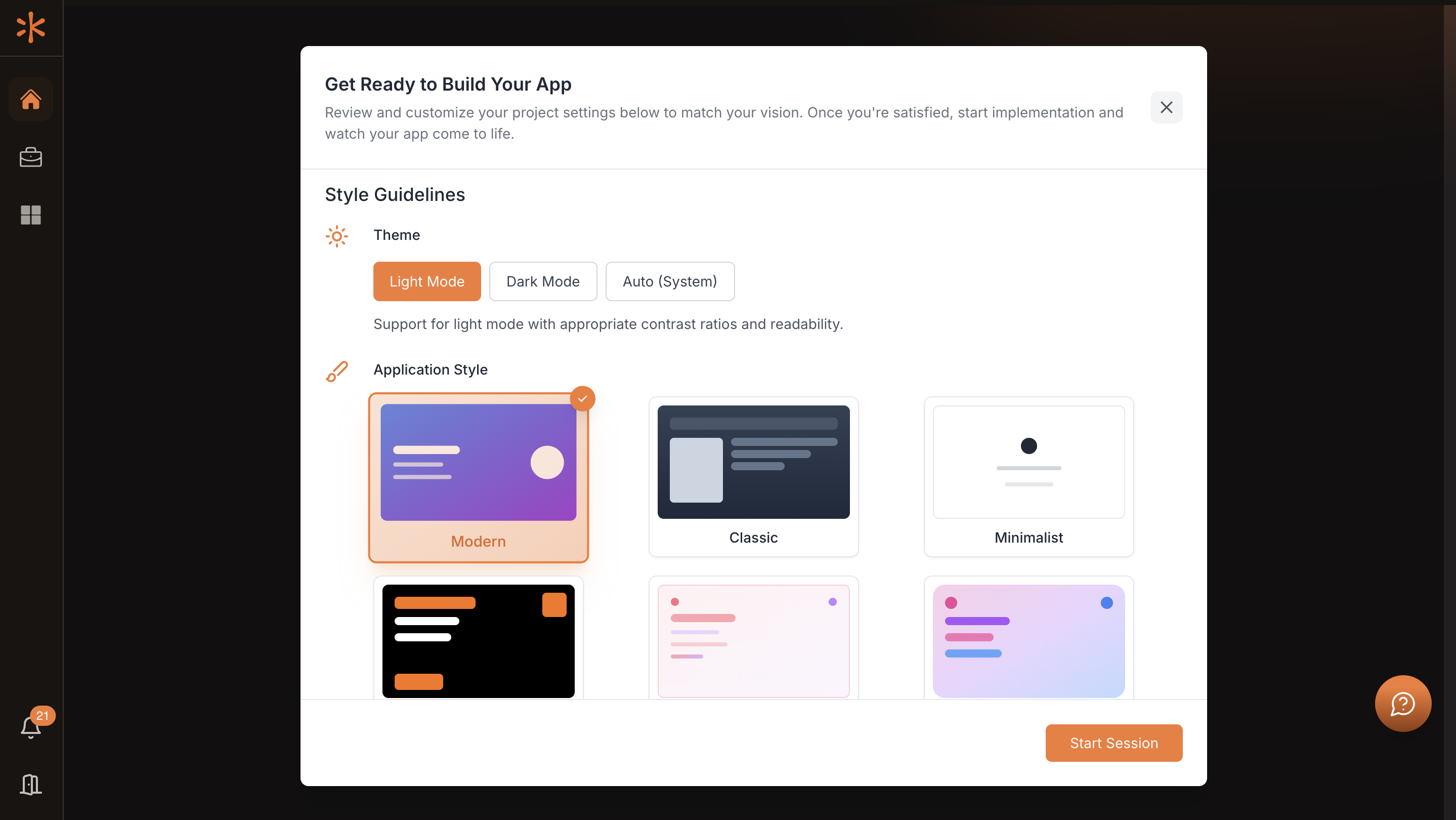
Choose an Application Style
Click on any Application Style you prefer. You’ll be redirected to the customizing page for that style.
3
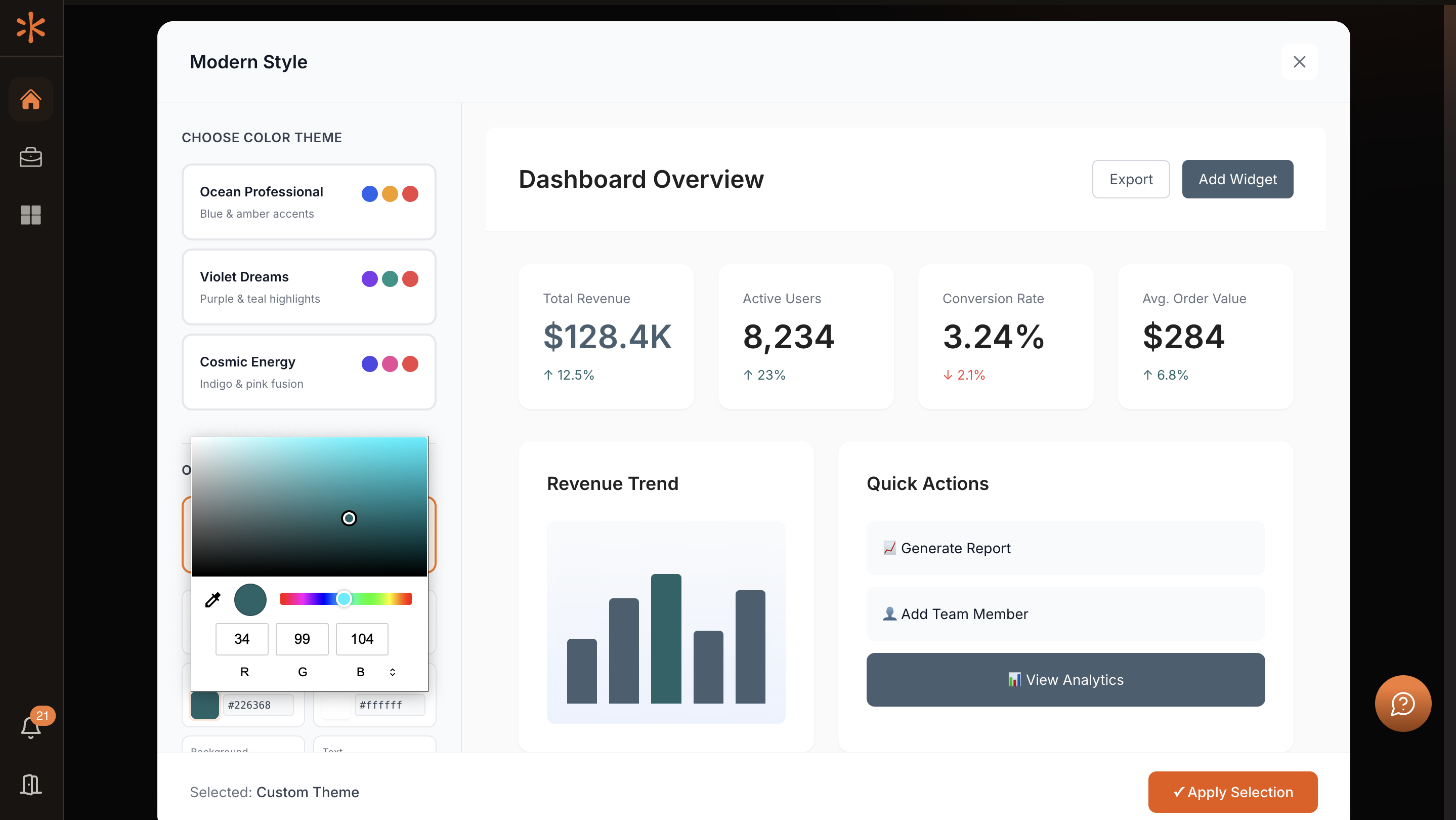
Set Your Color Theme
On the customizing page, you can either select from predefined color themes that match the style or click Create custom colors to define your own palette.

This allows flexibility whether you want ready-made options or a fully personalized scheme.After finalizing your theme or custom colors, click Apply Selection. You’ll be redirected back to the Project Welcome Screen with your chosen style applied.
Review the details on the Project Welcome Screen and make any necessary adjustments. When ready, click Start Session to begin building your project with Kavia.
Previous
AI Models and ReasoningNext
Custom Prompts